
See a return on any property before you’ve done anything. If you have an underwrite, move the levers and watch your own model respond.
For as long as anyone reading this has been in the business, the underwrite has been an event. A deal shows up. Someone opens a blank model. A day or two later there’s a number. Because that’s the cost, every team rations it: a handful of deals get underwritten, and the rest get passed on without anyone ever learning what they were worth.
We’ve spent the last year taking that constraint apart. Today we’re shipping the piece that changes it most: the Rapid Screener, in beta, in every Archer account.
What it is
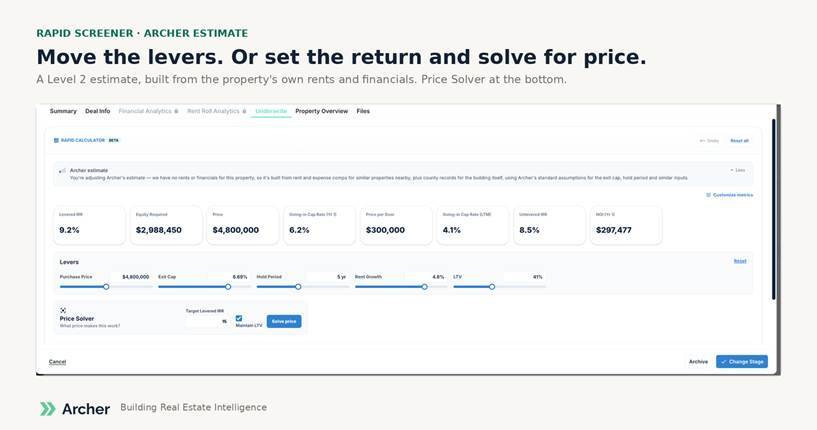
Open any property in Archer and you’ll see an estimated price, income and projected return before you’ve done anything. Move the levers that actually decide a deal, purchase price, exit cap, hold period, rent growth and leverage, and the return updates as you go. Or work it backwards: set the return you need and Price Solver tells you what to pay.
That alone would be useful. It isn’t the point.
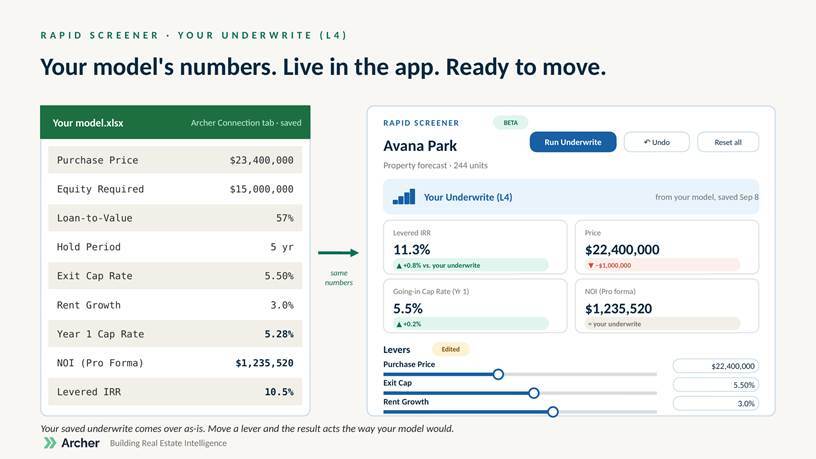
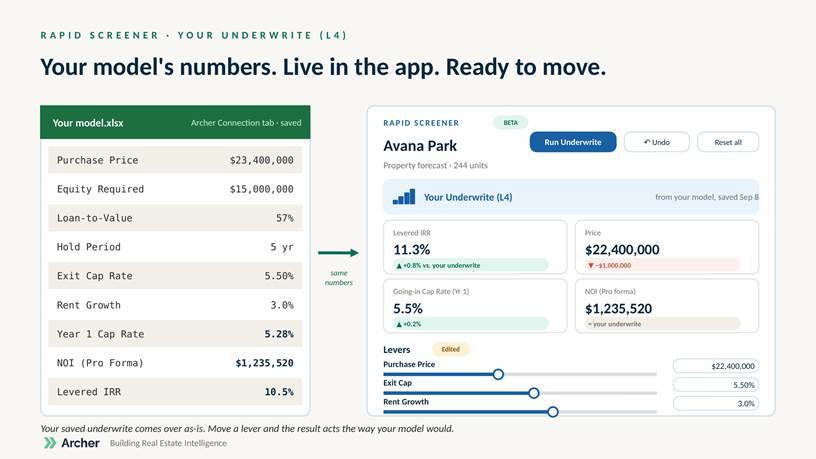
If you have an underwrite on the property, the screener shows your numbers. The price, the cash flow and the IRR your Excel produced, read directly from your saved model. Move a lever and the result moves the way your model would. When a broker calls with a new whisper price, you can answer on the call, with your own model behind the answer, without opening Excel.
The trade-off we wanted to end
Every acquisitions team has faced the same choice.
On one side, Excel. Your model, built by your principal, with your waterfalls and your lease-turnover logic and the tab nobody else understands. Trusted because it’s yours, auditable because you can see every cell. Slow because every deal starts blank.
On the other side, online underwriting tools. Fast, connected, good at sensitivities, terrible at being yours. A black box that behaves almost like your model but not quite, and “not quite” is fatal in front of an investment committee. Serious acquisitions shops stayed in Excel, and they were right to.
A client told us last week he loves the Archer model but needs four waterfalls his team has built and trusts, and he wasn’t about to let anything rebuild them. That’s the whole problem in one sentence. The Rapid Screener doesn’t ask him to. His model stays his. What changes is where he can see it.
How it can possibly represent your Excel
This is the question I get asked most, so here’s the plain version.
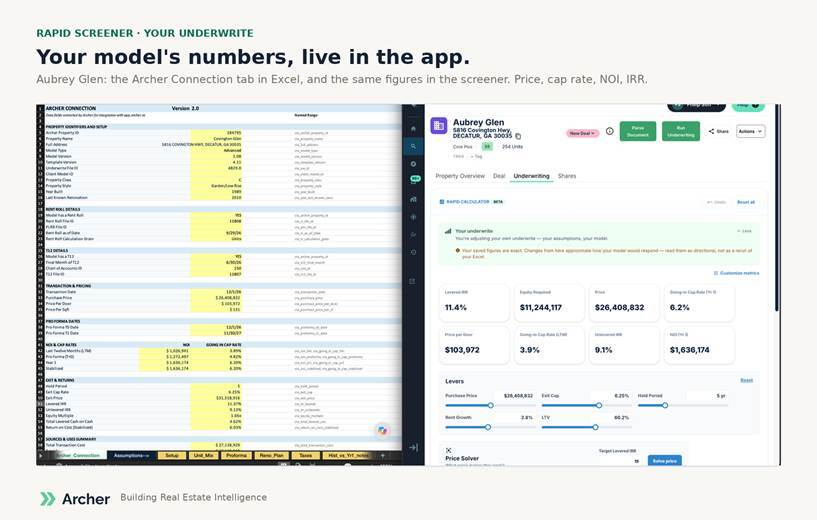
We don’t recalculate your model. When you save an underwrite to Archer, the Archer Connection tab gives us your inputs and your outputs. From those, we infer how your model behaves: whether you reassess taxes on acquisition, whether you apply growth in year one, which exit cap you actually use. We build a baseline that reproduces your result, move the baseline when you move a lever, and apply that movement to your number.
The saved numbers are exact. The adjustments are approximate, and the screen says so. In our own testing, a lever change that moved a model from 9.0% to 9.1% moved the screener the same way; compounding changes like extending the hold or adding a renovation are where the approximation is roughest. If you need the exact answer, run the underwrite. The screener tells you whether it’s worth running.
Every estimate tells you where it came from
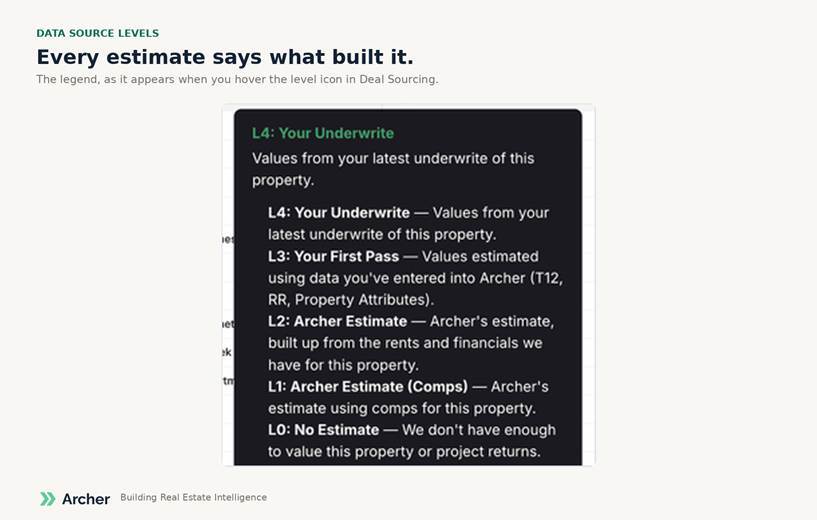
Not every property has your underwrite behind it. Most don’t. So every number in Archer now carries a Data Source level that tells you what built it.
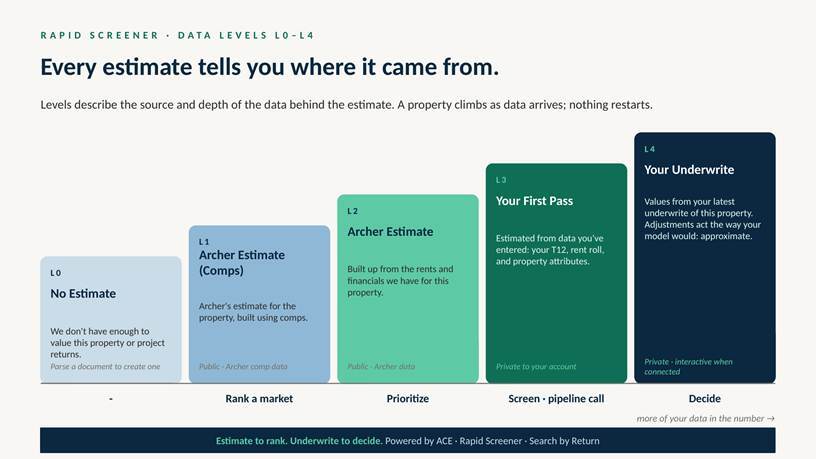
L1 · Archer Estimate (Comps). Built from the best comparable properties we can find. No operating data on the property itself.
- L2 · Archer Estimate. Built up from rents and financials we hold on the property, with comps filling the gaps.
- L3 · Your First Pass. Built from data you’ve entered: a T12, a rent roll, or a single corrected attribute. If we think a property has 50 units and you know it has 120, correcting that one number gives you a Level 3 estimate.
- L4 · Your Underwrite. Your latest saved underwrite, exactly.
The level isn’t a grade. It’s a description of the data behind the number, so you always know how much weight it can bear. A Level 1 can rank a market. A Level 4 is your number.
Where you’ll find it
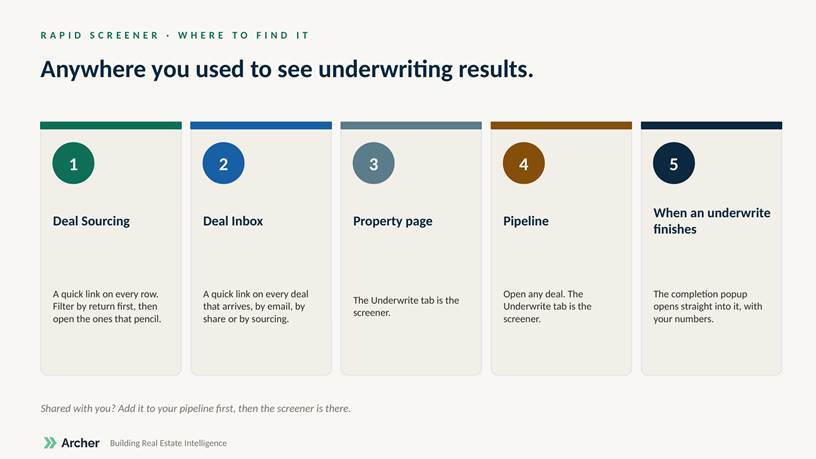
Anywhere you used to see underwriting results.
What it isn’t
It isn’t an appraisal, it isn’t investment advice, and it doesn’t replace underwriting the deal you love. It’s built to get you to the deep dive sooner, and to stop good deals dying in the pile you never had time to open. Use it to rank. Underwrite to decide.
It’s also a beta. Adjustments don’t save back to your pipeline yet; they live in the session, with undo. If you see a number that doesn’t match what you know about a property, tell us. The level will usually explain it, and your data will usually fix it.
Where this is going
Today: a return on everything, and your Excel in the cloud. Next: improving an estimate without a model at all, by entering a whisper price or a known NOI and saving it against the property. After that, every underwrite you run and every document you parse builds a benchmark from your own book, and the same engine can start to weigh every deal you could chase against every other. More on that once this first step has been in your hands for a while.
Two years ago we said we wanted to put a thousand deals in your pocket. This is what that was for.
FAQ
Does it use my comps? Levels 1 and 2 use Archer’s data. Your comps and assumptions flow through your underwrite at Level 4.
The screener says my model can’t be made interactive. Your model is missing something we need, usually a purchase price assumption, a hold period, or cash flows. You still see your saved metrics. Fix the input and save, or let us update the model; then it’s live.
Can I save my adjustments? Not in this beta. Session only, with undo. Saving back is next.
Why does the adjusted number differ slightly from Excel? Because adjustments are inferred from how your model behaves, not recalculated. Exact on the saved numbers, approximate on the moves.
Will this run on the property someone shared with me? Add it to your pipeline first. Then the screener is there.